 Setting up your Email Program
Below are instructions for setting
up Microsoft Outlook Express.
Incoming mail (POP3) Server: mail.yourdomain.com
Outgoing mail (SMTP) Server: mail.yourdomain.com
Account Name: email@yourdomain.com
Password: your password
To set up Outlook Express, follow the instructions
below.
1. Open Outlook Express on your computer.
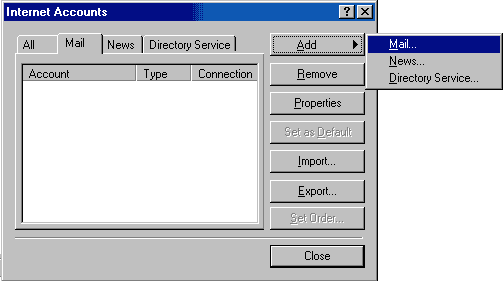
2. Click Tools --> Accounts, The Accounts window
appears
3. Click the Mail tab
4. Click the Add button then choose Mail, the Internet
Connection Wizard appears.
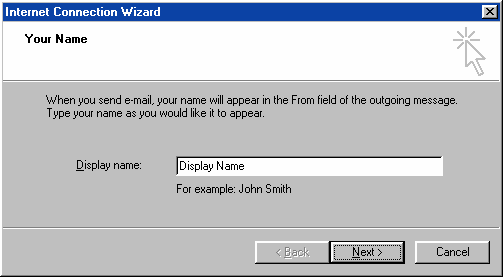
5. Add your Display Name. Enter the name you want others
to see in the From: field when you send E-mail, then click Next.
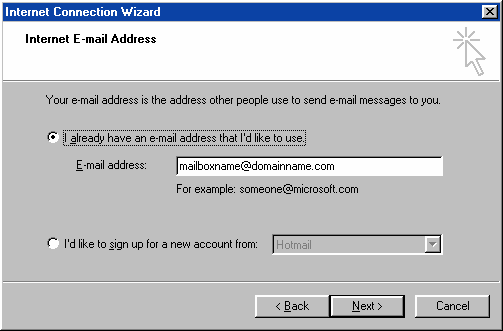
6. Enter your entire E-mail address (mailbox@domainname.com),
then click Next
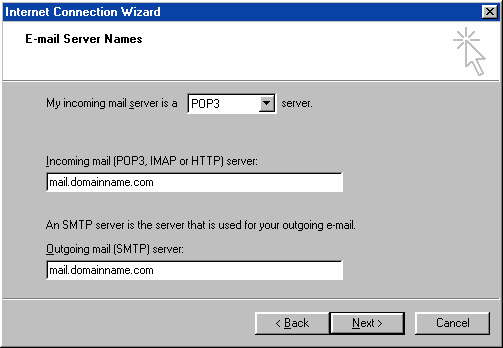
7. Do not change the value beside "My incoming
mail server is a". It should be set to POP3.
8. Input the POP3 server (mail.domainname.com) into
the Incoming mail server box.
9. Input the SMTP server (mail.domainname.com) into
the Outgoing mail server box.
Click Next.
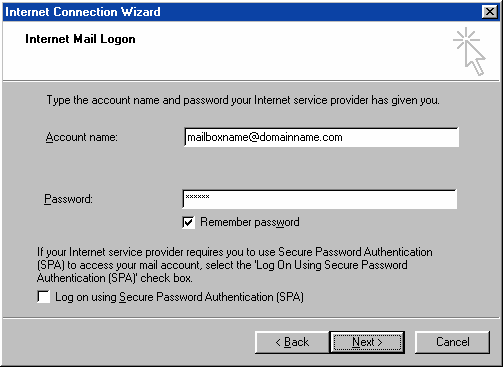
10. Enter your complete E-mail address
(mailboxname@domainname.com) in the Account Name box.
11. Enter your e-mail account password and click Next.
Note: You can set Outlook Express to remember your
password if you don't want to type it in every time you check
for new messages.
12. Click Finish, the Internet Connection
Wizard will close.
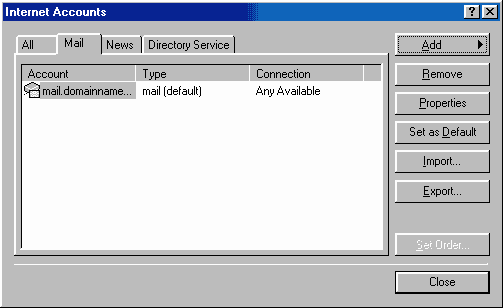
13. The Internet Accounts window should still be open.
If it is not,
click Tools --> Email Accounts to open it.
14. Click the Mail tab, the Mail Accounts window appears
15. Click the account you just created, then click
the Properties button
16. Click the Servers tab
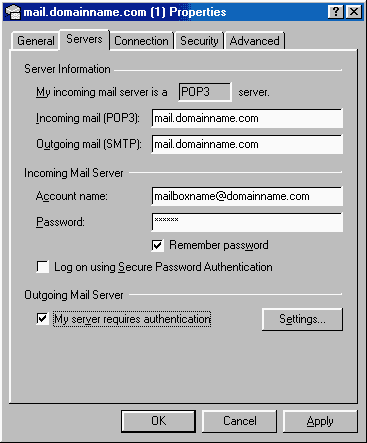
17. Check the box beside My server requires
authentication, then click the Settings button
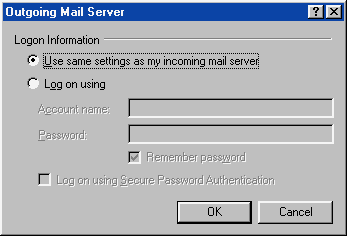
18. Select Use same settings as my incoming mail server
and click OK
19. Click Apply, then OK to close the
properties window. The Internet Accounts window will reappear.
20. Click OK to exit the Internet Accounts
window, your E-mail set-up is complete.
back
to Getting Started Guide
back
to Support Center
Home

