 Upload
using Adobe GoLive
Upload
using Adobe GoLive
1. Open Adobe GoLive, and open your site.
2. Click on Site --> FTP Server --> Connect.
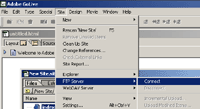
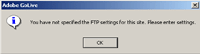
If this is your first time uploading you will receive the following
message. Click on OK.
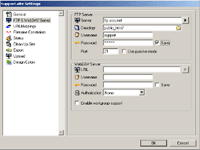
3. Add the Following Settings under FTP & WebDAV
Server:
Server - ftp.yourdomain.com.
Directory - yourdomain.com/.
Username - Your FTP username.
Password - Your FTP password.
Check Save.
Port - Make sure port 21 is specified.
4. Click on OK.
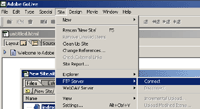
5. Click on Site --> FTP Server --> Connect.
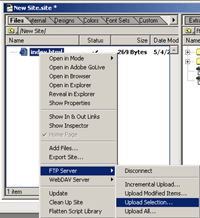
6. Right click on the file you want uploaded.
7. Then click on FTP Server --> Upload Selection.
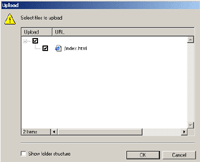
You will now be prompted to select what files you want
uploaded. Check the files you want uploaded.
8. Click on OK.
GoLive will now upload your file.
back
to Getting Started Guide
back
to Support Center
Home

