Web Hosting

Resellers

Support

Contact

About Us


Setting up your Email Addresses

To start adding mailboxes please log into your Control Panel first Click Here.

Mailboxes setup on our servers allow you to send, receive and store e-mail messages @yourdomain.com. Here you can learn how to:

  1. Create mailboxes on the server
  2. Configure mailboxes properties
  3. Create autoresponders

Creating a Mailbox

To add a new mailbox, do the following:

Step 1. From your Control Panel Select Mail Info on the left side menu.
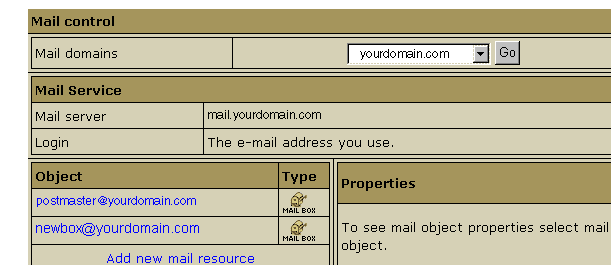
Step 2. At the bottom of the page that appears, click Add new mail resource:
 

Step 3. Choose Mail box from the drop-down menu and then click Next :


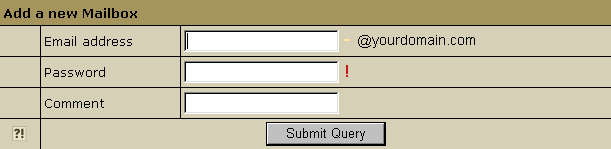
Step 4. Enter the name and password you want for the new mailbox and then click Submit:


Step 5. Now you will see your new Mailbox listed in the Control Panel. Congradulations you have now set-up your new Mailbox.


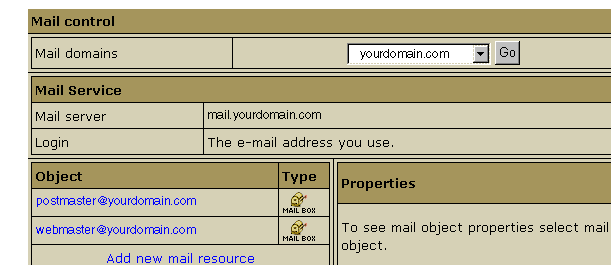
Important: You get the Postmaster mailbox for free and it can not be delete it or have its quota changed.The default Webmaster box is a regular mailbox and it counts towards your total maiboxes. This means, if you get 5 free mailboxes, you only have 4 free mailboxes left. The webmaster box can be deleted if you like.


Configuring Mailbox Properties

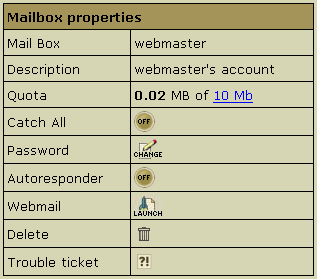
To configure a mailboxes properties login to your Control Panel and select Mail Info on the left side menu, click the Edit icon next to the name of the mailbox you wish to modify. You will see the mailboxes list of its properties on the right menu box:

  1. Quota: change the quota for this specific mailbox. Mailbox quota is not related to the site disk space quota. To change your mail quota, enter its new size in megabytes. From that moment on you will be charged for the difference between this new amount and the default free amount. This charge will be added to the recurrent fee at the beginning of each billing period.
  2. Catch All: if it's on, any email messages sent to a nonexistent account on your domain will go to this address.
    Example: your mailbox webmaster@example.com is marked as catch all. If someone sends an email to support@example.com, which doesn't exist, this particular message will arrive at webmaster@example.com. If no account were marked as catch all, this message would bounce back to the sender with an error notification.
  3. Password: click the icon to change the mailbox password.
  4. Autoresponder: set your mailbox to respond to the sender of incoming mail with a preset message. You need to compose a separate response message for every mailbox. Note: in version 2.3 and higher, autoresponder is an independant mail resource. (For details see below)
  5. WebMail: go to the web e-mail client to send or receive e-mail messages.
  6. Discard all incoming mail: turn this ON only if you are absolutely sure you don't need ALL your incoming mail. You can also turn it on when you are going on vacation. Senders won't receive 'underlivered mail' notices.
  7. Delete: delete the mailbox. To delete a Catch All mailbox, first switch Catch All OFF.
  8. Trouble Ticket: report troubles with the mailbox.

Autoresponders

Autoresponder is a mailbox attribute. Whenever a message arrives in a mailbox, the system immediately sends a custom response back to the sender.

To Setup autoresponders follow these steps.

Step 1. From your Control Panel Select Mail Info on the left side menu.

Step 2. At the bottom of the page that appears, click Add new mail resource:


Step 3. Choose Autoresponder from the drop-down menu and then click Next :

Step 4. Configure desired Autoresponder settings.
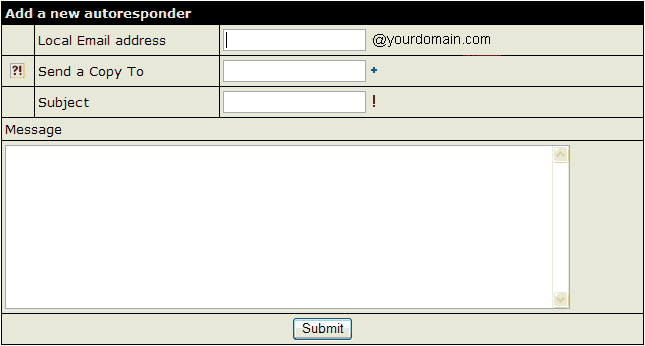

Local Email Address: Specify the Mailbox you want to set-up a autoresponder for.

Send a Copy To: the optional e-mail address to which copies of response messages will be e-mailed.

Subject: the subject of the response message, e.g. receipt confirmation.

Message: the body of the response message, e.g. Your message was received. Thank you.


back to Email Setup

back to Support Center

home